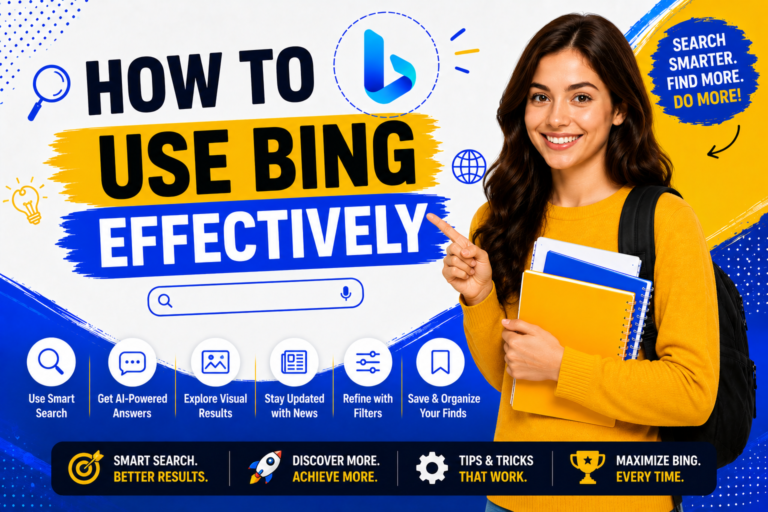
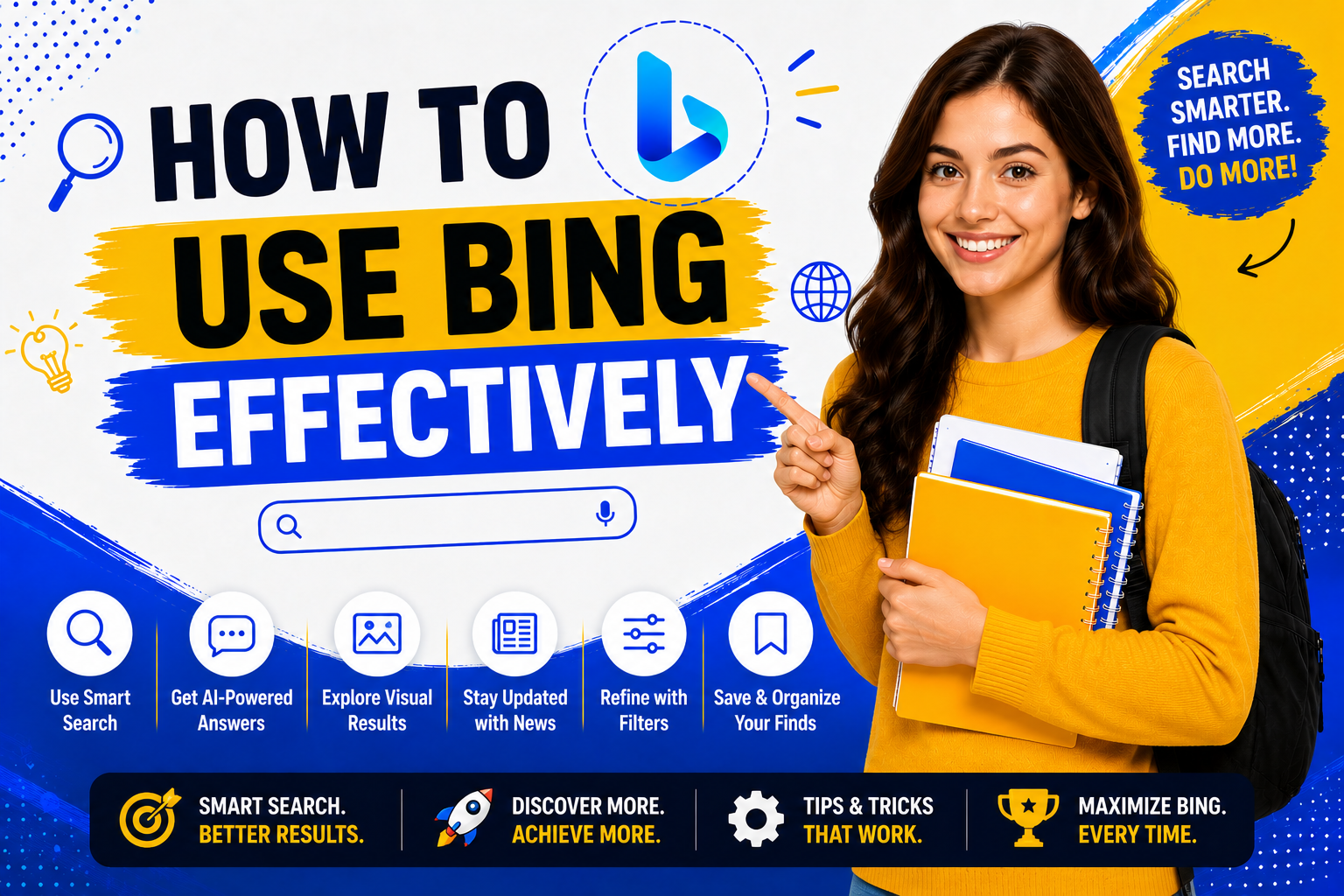
Using Bing is simple, but knowing how to use its features correctly can make your searches faster and more accurate. Whether you are a student, professional, business owner, or casual internet user, Bing offers several tools that help you find exactly what you need. In this section, you will learn how to use Bing efficiently, from basic searches to advanced search techniques.
Getting Started with Bing
You do not need any technical knowledge to use Bing. Open your preferred web browser and visit the Bing homepage. You can start searching immediately without creating an account. However, signing in with a Microsoft account unlocks additional features such as Microsoft Rewards, personalized search, saved preferences, and search history synchronization.
Basic Steps to Use Bing
Follow these simple steps:
- Open the Bing website.
- Type your search query into the search box.
- Press Enter or click the search icon.
- Browse the search results.
- Open the result that best matches your needs.
This process takes only a few seconds.
Understanding the Bing Search Results Page
After you search, Bing displays a Search Engine Results Page (SERP). This page contains different types of information depending on your search. You may see:
- Organic search results
- AI-generated answers
- Featured snippets
- Images
- Videos
- News articles
- Maps
- Shopping results
- Related searches
- Frequently asked questions
Each section is designed to help users find answers more quickly.
Organic Search Results
Organic results are web pages that appear naturally based on Bing’s ranking algorithm. These results are not advertisements. They are ranked according to factors such as:
- Content quality
- Relevance
- Website authority
- User experience
- Freshness
- Page speed
High-quality websites generally appear higher in the results.
Sponsored Results
Sometimes you will notice results marked as Sponsored.
These are paid advertisements.
Businesses pay to display these results for specific keywords.
Although they appear near the top of the page, they are clearly labeled so users can distinguish them from organic results.
AI Answers
One of Bing’s most useful features is AI-generated responses.
Instead of reading several articles, users may receive a direct answer summarizing information from multiple trusted sources.
This feature saves time, especially when researching simple questions.
Searching with Keywords
Keywords are the words you type into the search box.
Choosing the right keywords helps Bing understand your search intent.
For example:
Poor search:
Laptop
Better search:
Best laptop for programming students
Even better search:
Best budget laptop for programming under $800
More specific keywords usually produce more relevant results.
Using Natural Language
Modern Bing understands natural language.
Instead of typing only keywords, you can ask complete questions.
Examples include:
- What is cloud computing?
- How does artificial intelligence work?
- Which programming language should beginners learn?
- How can I improve website SEO?
This approach often produces more detailed answers.
Using Voice Search
If your device supports a microphone, you can search without typing.
Simply activate Voice Search and speak your question clearly.
Examples:
- What is today’s weather?
- Show me healthy breakfast recipes.
- Find the nearest coffee shop.
- Explain machine learning.
Voice Search is especially useful when using smartphones or smart devices.
Searching with Images
Sometimes an image explains your question better than words.
Bing Visual Search allows you to upload an image instead of typing text.
For example, you can identify:
- Plants
- Animals
- Buildings
- Products
- Clothes
- Books
- Electronics
Bing compares the uploaded image with its database and provides matching results.
Using Search Filters
After searching, Bing allows you to narrow the results using filters.
Popular filters include:
- Images
- Videos
- News
- Maps
- Shopping
- Date
- Language
- Region
These filters help users quickly find the type of content they need.
Saving Time with Search Suggestions
As you type, Bing automatically displays search suggestions.
These suggestions are based on:
- Popular searches
- Trending topics
- Common user queries
Search suggestions help users type faster and discover useful search ideas.
Using Related Searches
At the bottom of many search result pages, Bing displays Related Searches.
These suggestions help users continue exploring a topic without creating a completely new search.
For example, after searching for:
Artificial Intelligence
Related searches may include:
- AI tools
- Machine learning
- Deep learning
- AI for students
- AI applications
This feature helps users learn topics more deeply.
Bing Search Operators
Most users only perform simple searches.
However, Bing also supports advanced search operators that help users find highly specific information.
These operators are especially useful for researchers, students, SEO professionals, and developers.
Quotation Marks (” “)
Use quotation marks when searching for an exact phrase.
Example:
“best digital marketing strategy”
Bing searches for that exact phrase instead of individual words.
Minus Operator (-)
Use the minus sign to exclude a word.
Example:
Apple -fruit
This removes results related to the fruit and focuses on the company.
Site Operator
The site: operator searches only within a specific website.
Example:
site.com SEO Guide
This searches only pages from that website.
This operator is extremely useful for finding content on large websites.
File Type Operator
Search for a specific file format.
Example:
Cyber Security filetype
Useful file types include:
- DOCX
- PPT
- XLS
Students and researchers frequently use this operator.
AND Operator
Search for pages containing multiple keywords.
Example:
SEO AND Content Marketing
This helps narrow search results.
OR Operator
Search for either one keyword or another.
Example:
Laptop OR Tablet
Useful when searching for similar products.
Parentheses
Combine multiple search operators.
Example:
(SEO OR Blogging) Content Strategy
This improves search precision.
Tips for Better Bing Searches
Small improvements in your search habits can produce much better results.
Follow these tips:
- Use specific keywords.
- Ask complete questions.
- Check multiple sources.
- Compare information.
- Use search filters.
- Explore related searches.
- Try Visual Search.
- Use Voice Search when convenient.
- Verify information before sharing.
- Bookmark helpful pages.
These simple habits improve both speed and accuracy.
Common Search Mistakes
Many users unknowingly reduce the quality of their search results.
Avoid these mistakes:
Using Very Short Queries
Example:
Phone
Better:
Best Android phone under $500
Incorrect Spellings
Although Bing corrects many spelling mistakes, accurate spelling usually produces better results.
Ignoring Search Filters
Many users forget to switch between Images, News, Shopping, and Videos.
Using filters often saves a lot of time.
Opening Only the First Result
Sometimes the second or third result contains better information.
Compare multiple trusted sources before making decisions.
Using Too Many Keywords
Avoid writing long, confusing search phrases.
Keep your query simple and focused.
Best Practices for Everyday Users
To get the most from Bing, follow these best practices:
| Practice | Benefit |
|---|---|
| Use detailed search terms | Better search accuracy |
| Apply search filters | Faster results |
| Try Visual Search | Identify unknown objects |
| Use Voice Search | Hands-free searching |
| Explore related searches | Learn more about a topic |
| Verify information | Improve reliability |
| Save useful pages | Quick future access |
| Stay signed in | Access Microsoft Rewards and personalized features |
Why Learning Bing Search Techniques Matters
Most people use only a small percentage of Bing’s capabilities.
By learning advanced search techniques, you can:
- Find information faster.
- Improve research quality.
- Discover more accurate sources.
- Save time every day.
- Search like a professional.
- Increase productivity.
- Make better decisions.
Even small improvements in search habits can produce significantly better results.
ChatGPT vs Copilot
AI Tool Comparison: Gemini vs Claude
ChatGPT Alternatives: 10 Best AI Chatbots and Assistants
AI Tools Comparison: Free AI Tools vs Paid AI Tools
Best AI Tool for Students: Complete Guide for Learning
AI Tools for College Students: Best Free and Paid Options
Perplexity AI Review
What Is BingAI?
ChatGPT vs Gemini vs Claude: Complete Comparison
About The Author